Thursday, 22 February 2024

SAP Shared Memory (SHM)


SAP Shared Memory (SHM):

SAP shared memory is a shared memory resource in SAP Memory Management in which various buffer data are stored. SAP SHM provides a shared memory that is shared by all work processes. It is based directly on the shared memory of the operating system. It comprises SAP SHM segments that are divided into local and global segments. 

Local SAP SHM segments can be used by all work processes of one application server instance (AS instance). Global SAP SHM segments can be used by all work processes of all AS instances running on the same host The size of the shared memory pools is defined in the parameter ipc/shm_psize_<xxx>. The parameter is valid on all operating systems. However, the creation of the pools is heavily dependent on the operating system.


Reference:

  1. help.sap.com 
  2. SAP Notes 
  3. Linkedin

Wednesday, 21 February 2024

SAP Memory Types in SAP Memory Management


SAP Memory Types in SAP Memory Management:

The below two main types of memory areas in SAP 

  1. Extended Memory (EM) 
  2. Heap Memory 
also go little deeper, then we have in total 6 memory areas 

  1. SAP Shared Memory (SHM) 
  2. Extended Segments Memory (ES) 
  3. Extended Memory (EM) 
  4. Global Extended Memory (EG) 
  5. PRIV Memory (HEAP) 
  6. PROC Memory 


Reference:
  1. help.sap.com 
  2. SAP Notes 
  3. Linkedin

SAP Memory Management


SAP Memory Management:
                        
                      While working on SAP ABAP systems, we often facing memory-related "DUMPS" error in "ST22" or some time see work processes go in "PRIV mode" when checked in t-code "SM50". We wondering why such things happen in running in the SAP system and how to handle it. To understand this, we first need to understand what "SAP memory" is and how "SAP Memory Management" is done. So let’s get start to know the basic concept of SAP Memory management.


What is SAP Memory:
                    
                SAP memory is a memory area to which all main sessions within an "SAP GUI" have access. You can use SAP memory either to pass data from one program to another within a session or to 
pass data from one session to another.

Workflow for SAP Memory:

               When a user logon to an application server instance (AS instance) in the ABAP system, a user session is opened. Within a session, the user sends a request to Application Server ABAP (ASABAP). An ABAP program is started that is executed by multiple work processes. A separate memory area is assigned to each user session. 

              To run an ABAP program within a user session (internal session), the work process allocates memory, which contains user data (user context), as well as program data. Depending on the type of data, it is located in different memory areas. SAP Memory Management decides when and in what order a work process allocates specific memory areas. The order of memory allocation depends on the work process type (dialog or non-dialog) and on the underlying operating system.

Types of SAP Memory 

On a very high level, there are mainly two types of memory areas in SAP 
  1.  Extended Memory (EM) 
  2.  Heap Memory 
If we go a little deeper, then we have in total 6 memory areas 
  1. SAP Shared Memory (SHM) 
  2. Extended Segments Memory (ES) 
  3. Extended Memory (EM) 
  4. Global Extended Memory (EG) 
  5. PRIV Memory (HEAP) 
  6. PROC Memory 

We will see upcoming post IN details about SAP Memory types.


Reference:
  1. help.sap.com 
  2. SAP Notes 
  3. Linkedin

Monday, 16 October 2023

SAP MAXDB Backup using command line tool


SAP MAXDB Backup using the command-line tool

Use the command-line tool DBMCLI to take a DATA or LOG backup of the SAP MAXDB database. Follow the below command to take backups through the command-line tool.

Steps:
1. Open DBMCLI from the command prompt in the following location: /sapdb/programs/bin.

./dbmcli -d <SID> -u superdba,<password>

2. Check the DB state. 

./dbmcli on <SID>> db_state
OK
State
ONLINE
---

3. If you want to take offline backups stop the database (for Offline backups)

db_offline   
 
 (or)

db_admin

4. We need to create a backup template to take backups of data and logs.

For data (path location of Linux),

medium_put <data backup template name> "/<location>/<filename>" FILE  DATA

For Log (path location of Linux)

medium_put <log backup template name> "/<location>/<filename>" FILE  LOG

5. Connect the database before taking backups.

db_connect

6. Take a complete data backups.

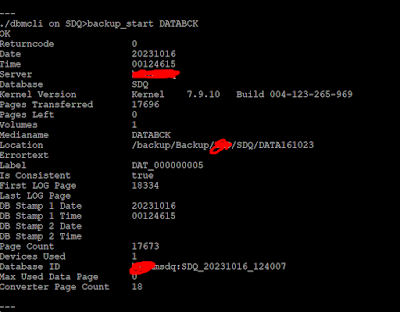
backup_start <data backup template name>

7. Take log backup

backup_start <log backup template name>

8. Check the backup status after completion.

backup_state

(or)

medium_label <backup template name>

9. Start a database

db_online

10. Find the below reference link for more details.

Education purposes only : Click here

For your reference.


Monday, 4 September 2023

How to reset Software Update Manager SUM tool


Usually we are using the below typical steps to reset the SUM process.

Follow the steps specified below to reset the SUM Process.

1. Go to the directory SUM\abap\bin.

2. Enter the command “\SAPup reset prepare

3. Delete the SUM directory.

4. End all SAPup processes on the OS level before, if any exist.

5. Please try to run report RSUPGRES. This will solve UVERS inconsistency.

6. Start everything again from the beginning.

The report, mentioned in step 5, should be used carefully and only in emergency cases.

Execute only with user DDIC in client 000.

Start in background, the program takes about 20 and 30 minutes.

The process should not be aborted manually!!!

This report works for SUM SP10 and higher.

Saturday, 15 July 2023

Configuring SAProuter as a service on Linux


SAP Router installation on Linux: click here. once the SAP Router installation.
Follow the below Steps to configure SAP Router "as a service" in a Linux environment (SUSE,REDHAT,,,,etc).

First of all, create the below two service files at the mention location.

1. Execute the below command to Create ".service" and ".sh" files (on linux)

saprouter:/etc/systemd/system # touch saprouter.service
saprouter:/etc/init.d # touch startsaprouter.sh

2.  Add the below entries to the "saprouter.service" file based on your environment. 

saprouter:/etc/systemd/system # vim saprouter.service

[Unit]

Description = SAP Router start Service
After = network.target

[Service]
ExecStart = /etc/init.d/startsaprouter.sh

[Install]
WantedBy = default.target


3.   Add the below entries to the "startsaprouter.shfile based on your environment.

saprouter:/etc/init.d # cat startsaprouter.sh
#!/bin/sh
export SECUDIR="/usr/sap/saprouter"
export SNC_LIB="/usr/sap/saprouter/libsapcrypto.so"
export LD_LIBRARY_PATH="/usr/sap/saprouter"
export LIBPATH="/usr/sap/saprouter"
cd /usr/sap/saprouter
./saprouter -r -K "p:CN=saprouter,OU=0000123456,OU=SAProuter,O=SAP,C=DE"

4.    Save and execute the below command to provide permission for the .service and .sh files.

saprouter: chmod 775 /etc/init.d/startsaprouter.sh
saprouter: chmod 775 /etc/systemd/system/saprouter.service

5.  Execute the below command to Start the SAP Router as a Service.

saprouter:/etc/systemd/system # systemctl start saprouter.service

6.    Check the SAP Router status.

saprouter:/etc/systemd/system # systemctl status saprouter.service

Saprouter.service - Saprouter start
     
Loaded: loaded (/etc/systemd/system/saprouter.service; disabled; vendor preset: disabled)
     Active: active (running) since Sat 2023-07-15 10:58:06 IST; 5s ago
   Main PID: 7961 (startsaprouter.)
      Tasks: 2
     CGroup: /system.slice/saprouter.service
             ├─ 7961 /bin/sh /etc/init.d/startsaprouter.sh
             └─ 7962 ./saprouter -r -K p:CN=saprouter,OU=0000123456,OU=SAProuter,O=SAP,C=DE


7. Use the below command to enable the automatic startup of the SAP Router service.

saprouter:/etc/systemd/system # systemctl enable saprouter.service

Created symlink /etc/systemd/system/default.target.wants/saprouter.service → /etc/systemd/system/saprouter.service.


8.    Check the status of the SAP Router service with the Startup option.

saprouter:/etc/systemd/system # systemctl status saprouter.service
 
saprouter.service - Saprouter start
     Loaded: loaded (/etc/systemd/system/saprouter.service; enabled; vendor preset: disabled)
     Active: active (running) since Sat 2023-07-15 10:58:06 IST; 41s ago
   Main PID: 7961 (startsaprouter.)
      Tasks: 2
     CGroup: /system.slice/saprouter.service
             ├─ 7961 /bin/sh /etc/init.d/startsaprouter.sh
             └─ 7962 ./saprouter -r -K p:CN=saprouter,OU=0000123456,OU=SAProuter,O=SAP,C=DE

Note: Kindly give the correct "Distinguished Name" for smooth execution.


Thanks.
Happy reading.