SAP Solution Manager 7.1 Installation Steps:
Operating System Windows Server 2008 R2
Database Server MS SQL Server 2008
Steps:
1. First install the database Server
MS SQL Server in
Windows Server OS
2. Start SWPM--> Choose --->SAP Solution manager 7.1 support Release 1
3.Assign the SAP SYSTEM ID(SID) =SOL
4. Give the input Kernel for SWPM installation 7.21
5. Enter FQDN Fully qualified domain name or Give After installation.
6. Enter the Master Password(Password for whole installation.
7. Choose SAP system user domain
8. Give the SAPSID and SAP SID Service user PASSWORD.
9. Choose Database host.
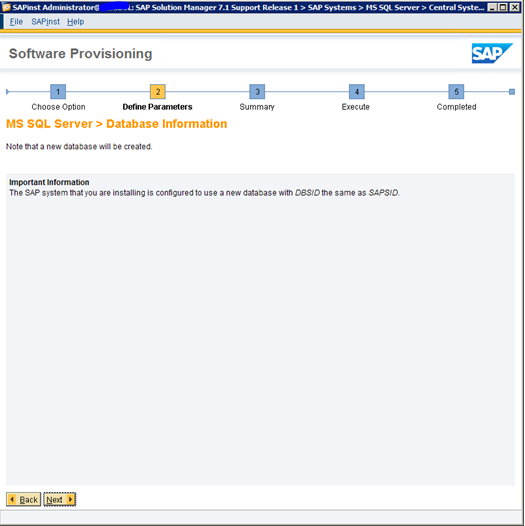
10. Check database information and click ==>next
11. Check Prerequisites check find the any recommended settings and recommended service pack
12. Choose SAP solution manager Export file from local server
13. Provide Sybase database Password.
14, Choose MS SQL Server Details then choose next (choose organization user level)
15. Check file system and if you want to increase add more what you want.
16. Choose temp file directory and path
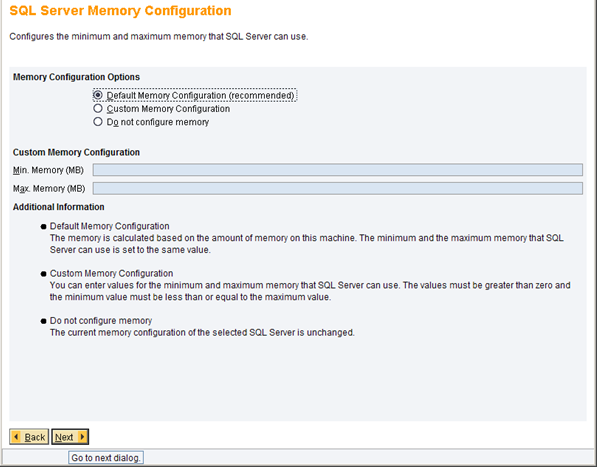
17. Server memory configuration use default system
18. Check General load Parameter in database
/
19 Secure store setting Give password and hit next
20. Give the Java component for SAP Solution Manager
21. Import after installation below Snotes
22. check and Verify the SAP Solution Manager instance
24. Check Central instance parameter.
25. Provide JAVA user name and password.
26. Enter the SAP UME Password
27. integrated into NWDI
28. Configure SLD connection establish a connection in OS level
29. Provide ADS password.
30. Go through the All input before Execute
32.SAP solution manager installed Successfully.