Showing posts with label SYBASE. Show all posts

Friday, 22 November 2024

Transaction Log Growing in Sybase Even After Turning Off Truncate Log


Transaction Log Growing in Sybase Even After Turning Off Truncate Log


Why Is the Transaction Log Still Growing After Turning Off Truncate Log?

Even after disabling or turning off truncate log, you might still see the transaction log grow. Several factors could contribute to this behavior:

Uncommitted Transactions

If there are long-running or uncommitted transactions, the transaction log cannot truncate because the data still needs to be preserved for recovery.

Solution: Investigate whether there are open transactions in the database that are holding onto resources for an extended period. You can use the sp_who , sp_lock and syslogshold system stored procedures to identify long-running queries or locks that could be causing this issue.

Log in to Sybase and use the following query to identify long-running or sleeping processes.

select * from master..syslogshold
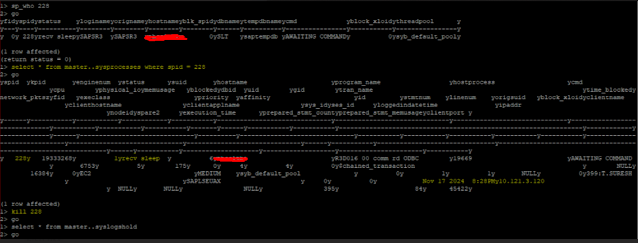

  To find the long-running processes, you can use the sp_who command with the PID. or

select * from master..sysprocesses where spid = PID

Then, kill the long-running process. Now that there are no long-running processes, the issue is resolved.

kill [PID];


Thanks!

Wednesday, 20 March 2024

How to schedule a database/transaction log backup for SAP JAVA Stack system - SAP ASE


 You can schedule regular database/transaction log backups for SAP Java Stack systems running on SAP on ASE (with no possibility to use an ABAP stack system to manage that from DBACockpit).

Environment:

SAP Adaptive Server Enterprise (ASE) 16.0

Pre-requisites:

  1.  Job Scheduler database is installed and up and running
  2.  Backup Server is up and running
You can schedule automatic dump jobs using AMC, under Backup & Recovery > Database Dumps > Create option.

If you want to schedule dump manually, you may proceed with the following steps:

Connect to ASE using isql command 
sybadm> isql -Usapsa -PXXXX -S SMJ -X

Create a dump configuration if required. The advantage of the dump configuration is that you can reuse for others dumps.

sybadm> use master
sybadm> go

sybadm> sp_config_dump '<configname>',@stripe_dir='</path/to/backup/location>',@num_stripes='<#stripes>',@retry='1',@compression = '<compression level>'
sybadm>go

Example:  sp_config_dump 'SMJDB',@stripe_dir='</backup/Backup/SOL/SMJ',@num_stripes='1',@retry='1',@compression = '101'  

Create a scheduled job using sp_sjobcreate stored proc

Command syntax: sp_sjobcreate 

sybadm> use sybmgmtdb
sybadm> go

Create database dump syntax:
 sybadm> sp_sjobcreate @name='<schedulename>',@option="jname=<jobname>,jdesc=<job description>,jcmd=dump database <dbname> using config = '<configname>',days=<day1:day2..>,starttime=<hh:mm>"

sybadm> go

Example create database dump with "SMJDB" database name:

sybadm> sp_sjobcreate @name='DMP_SMJDB_SCH',@option="jname=DMP_SMJDB_JOB,jdesc=Nightly SMJDB dump at 22hrs,jcmd=dump database smjdb using config = 'dmpcfg_db',days=Monday:Tuesday:Wednesday:Thursday:Friday,starttime=10:00pm"
 
sybadm> go

 Create transaction log dump with "SMJLOG" database name:

 sybadm> sp_sjobcreate @name='DMPTX_SMJLOG_SCH',@option="jname=DMPTX_SMJLOG_JOB,jdesc=Hourly SMJLOG tran Dumps,jcmd=dump tran smjlog using config = 'dmpcfg_tx',starttime=06:00am,endtime=09:00pm,repeats=1hour,sproperties=continuous_run"
 
sybadm> go 

To check the scheduled job:

smjadm> sp_sjobhelp @name='<schedulename>'

smjadm> go


Reference:

  • SAP Snote
  • SAP help

Monday, 29 August 2022

How to check if secure store keyphrase is correct


How to check if secure store keyphrase is correct


If you are not sure if the KeyPhrase you know is the correct KeyPhrase which was used to encrypt the secure store in Configtool.

If you have performed System Copy and Target System is not starting. You want to check if KeyPhrase you entered in SapInst (System Copy Tool) is the correct KeyPhrase used to encrypt Secure Store on Source System.


SAP NW Java System provides a tool to check if the entered KeyPhrase is correct or not. The tool takes input as:

Solution:

  • A KeyPhrase string
  • A SecStore.properties

Command on Windows Machine: <Drive>:\usr\sap\<SID>\SYS\global\sltools\checkKeyPhrase.bat -f <location of SecStore.properties file>

Command on UNIX/AIX Machine: <Drive>:\usr\sap\<SID>\SYS\global\sltools\checkKeyPhrase.sh -f <location of SecStore.properties file>


After executing the command, it prompts for KeyPhrase:


Enter the KeyPhrase and system suggests if entered KeyPhrase is correct or not:


 Reference Snote: 1895736

Thursday, 11 August 2022

How to reset Sybase sapsso/sapsa password for SAP ASE for Business Suite


How to reset Sybase sapsso/sapsa password for SAP ASE 15/16 for Business Suite.

Follow the below steps to reset the password.

(if you forget the password of sapsa use the below steps to reset the password.

1.Shut down ASE, if it is running

2.Edit $SYBASE/$SYBASE_ASE/install/RUN_<SID> file, and add a new line with -psapsso at the end of the file.

For example:

/prd/rel157/ASE-15_0/bin/dataserver \

-d/prd/rel157/data/master.dat \

-e/prd/rel157/ASE-15_0/install/prd.log \

-c/prd/rel157/ASE-15_0/prd.cfg \

-M/prd/rel157/ASE-15_0 \

-sprd \

-psapsso \ 

3.Start ASE. (Please make sure there is no error reported during the start of ASE like max memory not high enough, please fix this in CFG file(/sybase/SID/SID.cfg) and start again before proceeding)

4.A new password will be printed into terminal screen right after the last system database online information.

(Note: This new password is only printed on the terminal screen. It is NOT written to the errorlog. Do not close this session until after using the password. Once the session is killed/closed, the password will no longer be valid. )

It looks like this (this is only an example, you will see a different set of character than 'ddsoiadknnygf4'):

 New SSO password for sapsso: ddsoiadknnygf4

5.Please immediately login to ASE using isql and change the passwords of users 'sapsso':

isql -Usapsso -P ddsoiadknnygf4 -S prd

use master

go

alter login sapsso with password "<sapsso-password>" modify password "<newpassword>"

go

After changing the passwords of database logins 'sapsso', you should immediately change the passwords for the database users in the Secure Storage. The passwords in the ABAP/Java Secure Storage are used for the connection to the ABAP/Java database schema by the application servers.

6.Edit RUN_server file and remove -psapsso entry (this is important. if you start the server again with -psapsso still in place, the sapsso password will get reset with another temporary value).


Reference from SNote: 2008256

Tuesday, 24 September 2019

ERROR :Assertion failed: Detected database~ message happened during the SAP ASE installation for Business Suite


ISSUE:
  • Assertion failed: Detected database connection issues for host strsap with port 4901 and database server name .
  • Database connect via isql tool is possible.
  • Database connect via JDBC driver is not possible
  • SAP ASE log shows that the DB started with IPV6 address.

network name , interface IPv6, address abef::d4:ecff:fed9:104, type tcp, port 4901, filter NONE

Solution:

  •   Add correct hostname information with IPv6 and IPv4 address in the /etc/hosts
  •   Restart SAP ASE with IPv4 address.
  •   Shutdown SAP ASE
  •   Disable IPv6 on the host  Start SAP ASE
 

Friday, 6 September 2019

How to Upgrade SYBASE ASE 15 to 16.0.3 in Linux


Prerequisites

1.Host agent version at least 7.21 SP36 (Note 1031096 for host agent upgrade).

2.Syb_db_update.TXT file which attached on note 1982469.

3.SAP ASE 16 BS and SAP ASE 16 DBCLIENT Both file are required.


STEPS

Put both DB and CLIENT file in temp directory and extract only DB file and extract both files.


After extract change the ownership of tmp directory root to sybsid as shown in image.


 Then download the syb_update_db.TXT file from 1982469 Note.


Place the script under /usr/sap/hostctrl/work/IDS directory as mentioned in below image(if IDS folder not present create folder).


After place the Script file Stop the sap Application Server.


Set library path.


export LD_LIBRARY=/usr/sap/hostctrl/exe

check Library 

echo $LD_LBRARY_PATH

/usr/sap/hostctrl/exe


To check a prerequisites.

Run a command as ROOT user.


./saphostctrl -function LiveDatabaseUpdate -dbname IDS -dbtype syb -updatemethod Check -updateoption TASK=CHECK_UPDATE_ASE  -updateoption DROP_LOCATION=/tmp/db


Then update a database.

Run a command as ROOT user.


./saphostctrl -user sapadm Welcome1 -function LiveDatabaseUpdate -dbname IDS -dbtype syb -updatemethod Execute -updateoption TASK=UPDATE_ASE -updateoption DROP_LOCATION=/tmp/db


After execute the command Wait for some moment.

 The ASE 16 was upgraded successfully. 


After completion DB upgrade Start SAP SYSTEM.

Post Activity:

Go that below folder and take a backup.


Move the DB client file from tmp directory to below mentioned directory.
 

swith the user to SIDadm


Extract the Client file.


Now Both Database and DB Client are Updated to SYBASE16.0.3
 

Finally Stop and start the SAP Application.