Sunday, 6 August 2017

How to run the SAP SWPM 1.0 SP20


SAP SWPM1.0 SP20:

My first experience with the web based SUM 1.0 14 and 15 . Now we are at same tipping point with SAP SWPM 1.0 SP20.

Steps:

1. Login to the http://www.support.sap.com

2. Choose Download Software

3. Search Software Provisioning Manager 1.0

4. Choose Operating System (ex.. Windows X64bit,Linux X64bit)

5. Now download the SWPM


6. After Download completed Extract it. Make folder use below command to execute iin command prompt in windows and Terminal in linux.

SAPCARXXX.EXE -xvf SWPM10SP20_5-20009707.SAR

7. Start the sapinst.exe file


8. After Program get started Get the URL for SWPM1.0 SP20 Web based INST Master.


9. URL has been Highlighted Copy and paste the URL to browser.
https://<hostame>:4237/sapinst/doc/index.html

Get the below Warning message Click Advance and Add Exception -> confirm Security Exception


10. Give Password in Linux "root username" and  password in windows "administrator username" and password.


  12.  Finally we get the Web based SAP SWPM 1.0 SP20 


SAP Solution Manager 7.1 Installation Steps


SAP Solution Manager 7.1 Installation Steps:

Operating System     Windows Server 2008 R2

Database Server        MS SQL Server 2008

Steps:

1. First install the database Server MS SQL Server in Windows Server OS


2. Start SWPM--> Choose --->SAP Solution manager 7.1 support Release 1


3.Assign the SAP SYSTEM ID(SID) =SOL


4. Give the input Kernel for SWPM installation 7.21 


5. Enter FQDN Fully qualified domain name or Give After installation.


6. Enter the Master Password(Password for whole installation.


7. Choose SAP system user domain 


8. Give the SAPSID and SAP SID Service user PASSWORD.


9. Choose Database host.


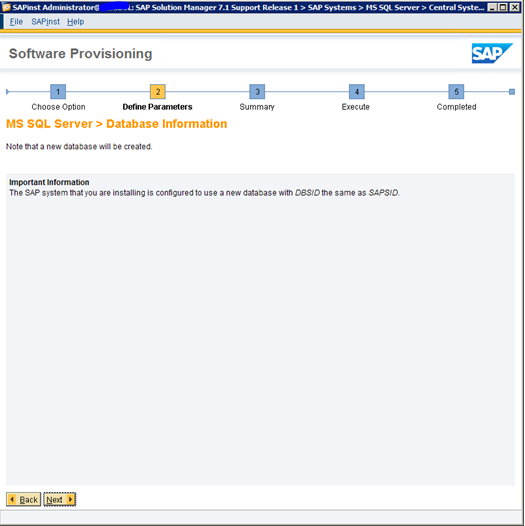
10. Check database information and click ==>next


11. Check Prerequisites check find the any recommended settings and recommended service pack


12. Choose SAP solution manager Export file from local server


13. Provide Sybase database Password.


14, Choose MS SQL Server Details  then choose next (choose organization user level)


15. Check file system and if you want to increase add more what you want.


16. Choose temp file directory and path


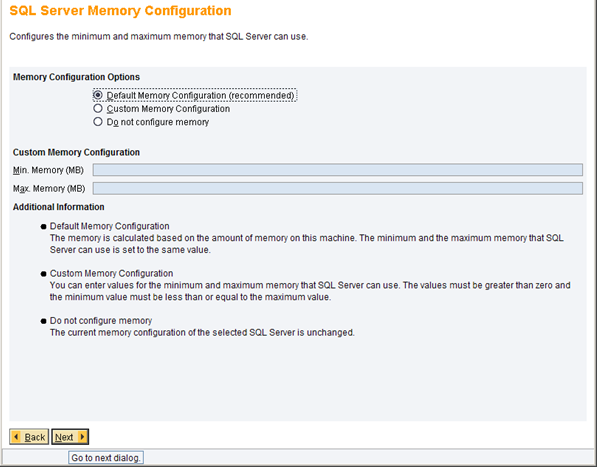
17. Server memory configuration use default system


18. Check General load Parameter in database
/


19 Secure store setting Give password and hit next


20. Give the Java component for SAP Solution Manager


21. Import after installation below Snotes


22. check and Verify the SAP Solution Manager  instance


24. Check Central instance parameter.


25. Provide JAVA user name and password.


26. Enter the SAP UME Password


27. integrated into NWDI


28. Configure SLD connection establish a connection in OS level


29. Provide ADS password.


30. Go through the All input before Execute


32.SAP solution manager installed Successfully.


Friday, 4 August 2017

How to install and configure SAP Router in SUSE Linux


SAP Router Install and configuration:

Pre-request Steps:

1. Login to root user.

2.Create the directory usr/sap/saprouter

3. Download the following files and extract to /saprouter directory


4.Create saprouttab file and maintain the permission for your networks.

5. following is an example content of saprouttab


  <SAP server IP> is ip address of the server which is need to be access via SAP ROUTER

  <Port> is port of sap application for access 

  D**** Means Deny all the connection accept the entry of the server IP in which mention   saprouttab

 Configuration :

6. Set the environment variable

     export SECUDIR = /usr/sap/saprouter
     export SNC_LIB = /usr/sap/saprouter/libsapcrypto.so

7. Generate Certificate

     Execute the below commands generate certificate.

   ./sapgenpse get_pse -v -r certreq -p local.pse "CN=<Hostname> , OU = <ou number> ,OU =      SAProuter ,O=SAP,C=DE"

Result: (give password >


8. Now certificate has been generated now open the certreq file and crtl +A and ctrl+C

9. Update certificate request in SAP Market place and paste and generate it.

10.Now import the generated certificate from SAP market place.

Execute below commands to import the certificate file.

 ./sapgenpse import_own_cert -c srcert -p local.pse 

  srcert file will be generated.


11 . Now open the srcert file paste the generated certificate from SAP market place.
      save it.

12. Now we eill have to create the credentials for SAP router Execute below commands to assign the       user to SAP Router.
     
     ./sapgenpase seclogin -p local.pse -0 root


13. Check if the certificate has been imported successfully with following command:

    ./sapgenpse get_my_name -v -n Issuer

14. Get the below result


15. Start Router

   ./saprouter -r -K "p:CN=<sap router hostname>,OU=<Customer Name>,OU=SAProuter,O=SAP,U=DE"


Thursday, 3 August 2017

How to check SAP HANA database version in OS level


Check SAP HANA database version OS level and SAP HANA Studio:

Here is the way to check SAP HANA database version in OS level :

1. SAP HANA version check using Command line.

Login to the OS level as user  "<SID>adm".
 then run the below command.

> HDB version

Get the version of SAP HANA database.


Option 2:

Here is the way to check SAP HANA database Version using SAP HANA Studio

Logon to the SAP HANA Studio and check the "Version History" follow below
1.Log in to the HANA System
2.Right the HANA System then Properties 
3.Check "Version History"