Sunday, 3 January 2021

Tcode SMQ2 : qRFC Monitor (Inbound queue)


SAP  Basis Daily Monitoring T-Code SMQ2 qRFC Monitor (Inbound queue)

We need to check if any Inbound entries got stuck in the queue. 
If so check with the respective job owner and re-execute the entries.


Monitor for the inbound queue. You use this transaction to monitor the status of the LUWs in the inbound queue.

To view the specified queue, choose Execute . To display only those queues that have errors, choose Waiting Queues Only .


Tcode SMQ1: qRFC Monitor (Outbound queue)


SAP Basis Daily Monitoring T-Code SMQ1: qRFC Monitor (Outbound queue)

We need to check if any outbound entries got stuck in the queue. 
If so check with the respective job owner and re-execute the entries.

You use this transaction to monitor the status of the LUWs in the outbound queue and restart any hanging queues manually. 

On the following screen, you can enter the queue name and the queue destination.


view the specified queue, choose Execute . To display only those queues that have errors, choose Waiting Queues Only . 


Saturday, 2 January 2021

Tcode SM13:Update Request


SAP Basis Daily Monitoring T-Code SM13:Update Request or Records.

Here we check the update records of the system which are getting canceled.


Update management transaction which is used for:
  1. Display update requests
  2. Analyze problems pertaining to the update
  3. Test and debug canceled update requests
  4. Display and reset the status of update requests
  5. Delete update requests
  6. Display statistics on updates


Tcode SM21 : System Logs Analysis


SAP Basis Daily Monitoring T-Code SM21 System Logs Analysis.

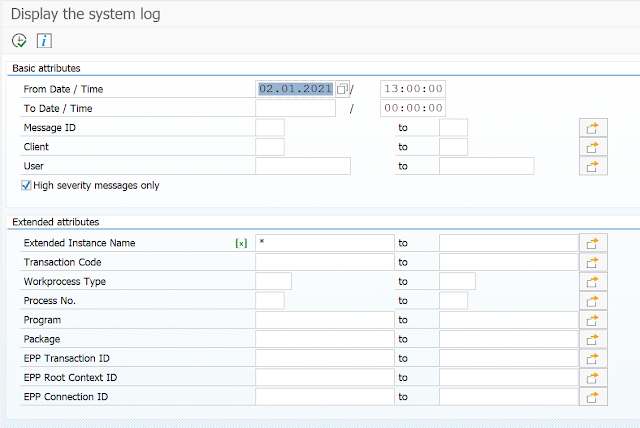
This Tcode used to check and analyze system logs for any critical log entries. The SAP System logs is the all system errors, warnings, user locks due to failed log on attempts from known users, and process messages in the system log.


  • From this initial screen, go to System Log -> Choose -> All remote system logs. 

Set the date a day before and click on Reread system log.

  • In the system log analysis window, you can check/analyze the critical error message by double clicking to it.

  • The list can be restricted for Problems Only, Problems and message and All messages.
  •  The information in this list can further used to analyze the errors which are indicated with Red sign under Priority. Also we get information of Tcode that was used by the user when the error got generated. 


There are to two different types of logs created by the system log:

  •  Local Logs

Each SAP System application server has a local log that receives all the messages output by this server. The system log records these messages in a circular file on the server. When this log file reaches the maximum permissible length, the system log overwrites it, starting over from the beginning. (The location of the local log is specified in the rslg/local/file profile parameter.)

  •  Central Logs

Each individual application server sends its local log messages to this server. The server that you designate to maintain the central log collects the messages from the other application servers and writes these messages to the central log. The central log consists of two files: the active file and the old file. (The location of the active file is specified in the rslg/central/file profile parameter; the location of the old file is specified in the rslg/central/old_file.). The active file contains the current log. 

When it reaches the maximum size, the system performs a “log file switch”. It deletes the old log file, 

makes the previously active file the “old” file, and creates a new active file. 

The switch occurs when the size of the active log file is half the value as specified in the rslg/max_diskspace/central parameter.


 Source: SAP Wiki page

Friday, 1 January 2021

Tcode SM12: Lock entries


SAP Basis Daily Monitoring T-Code SM12: Lock entries.

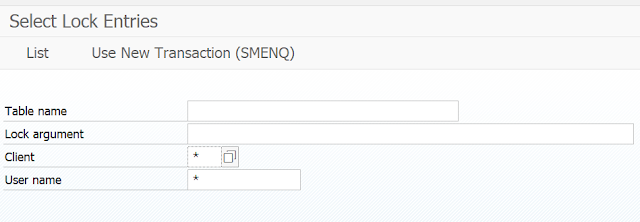
In Transaction Code SM12 and SMENQ we check the Lock entries. No lock entries should exist for more than 24hours. 

The number of lock entries should not exceed more than SM12(500) SMENQ(1000).

SM12

SMENQ

Check the list.

SM12 Output:

SMENQ Output:


Tcode SM37: Job Selection


SAP Basis Daily Monitoring T-Code SM37: Job Selection for Background & Batch Jobs

One for the important Tcode for SAP Basis daily monitoring is used to monitor the background, batch jobs running in the system.


From the Tcode SM37 initial screen, you can search by the job name, user name, or program name accordingly with the time condition.

  •     Scheduled – Job already been defined, but the start condition has not yet been defined.
  •     Released – The job has been fully defined, including a start condition.
  •     Ready – The start condition of a released job has been met. A job scheduler has put the job in          line to wait for an available background work process.
  •     Active – The job is currently running. Active jobs can no longer be modified or deleted.
  •     Finished – All steps that make up this job have completed successfully.
  •     Canceled – The job has terminated. This can happen in two ways:
  •      An administrator intentionally terminates the job
  •      A job step contains a program that produces an error, such as:
  •      An E or A error message in an ABAP program
  •      A failure return code from an external SAPXPG program